
Ever feel like time slips through your fingers while juggling tasks in Notion? You’re not alone! Studies show that the Pomodoro Technique can skyrocket productivity by up to 40%. As someone who’s constantly seeking ways to optimize my workflow, I discovered that embedding a Pomodoro timer in one of my favorite tools Notion is a game-changer. In this guide, we’ll explore how you can effortlessly integrate this powerful Pomodoro Notion Timer into your workspace and take control of your productivity in 2024!
Table of Contents
What is the Pomodoro Technique?
As a massive procrastinator, I still remember when I first stumbled upon the Pomodoro Technique. Back when I studied, I was drowning in assignments and couldn’t focus for more than a few minutes until something else poked my attention. That’s when a friend told me about Francesco Cirillo, who developed this method in the late 1980s. Cirillo used a simple tomato-shaped kitchen timer—”pomodoro” means tomato in Italian—to break his work into 25-minute intervals with 5-minute breaks. It was his way of combating procrastination and improving productivity.
I thought, why not give it a try? To my surprise, those short, focused bursts of work made a huge difference. Knowing I had a break coming up helped me stay committed during those 25 minutes. It’s fascinating how a straightforward time-management technique from decades ago can still be so effective today. The Pomodoro Technique not only helped me get through college but also became a staple in my professional life.
I have to admit, the concept of working in 25-minute intervals took some getting used to. When I first tried the Pomodoro Technique, I was amazed at how much more I could accomplish. The idea is straightforward: you set a timer for 25 minutes and focus on a single task without any distractions—that’s one “Pomodoro.” Once the timer goes off, you take a 5-minute break to relax your mind.
These short breaks are crucial. At first, I thought skipping them would let me get more done, but I quickly realized that the breaks actually recharge my brain. After completing four Pomodoros, you take a longer break, usually between 15 and 30 minutes. This longer rest helps prevent burnout and keeps your energy levels up throughout the day.
One tip I picked up is to use those 5-minute breaks to stand up and stretch or grab a quick snack. It might seem insignificant, but moving around helps me stay alert. Also, having a visual chart or image showing the cycle of work and breaks can be really handy—it keeps me on track and reminds me when it’s time to rest.
By dividing my work into these manageable intervals, tasks that once felt overwhelming now feel totally doable. Plus, knowing a break is always just around the corner makes it easier to stay focused during the work sessions. It’s funny how something as simple as a timer can transform the way we work.
Benefits of Using a Pomodoro timer in Notion
- Unified Workspace: Keep your tasks and timer in one place for seamless workflow so you can put your phone away to avoid unwanted distractions.
- Enhanced Focus: Minimize distractions by adhering to timed sessions.
- Customizable Experience: Tailor the technique to fit your personal work style within Notion.
Step-by-Step Guide to Embedding a Pomodoro Notion Timer
- Step 1: Go to Notion Marketplace for Templates and search for “Pomodoro”
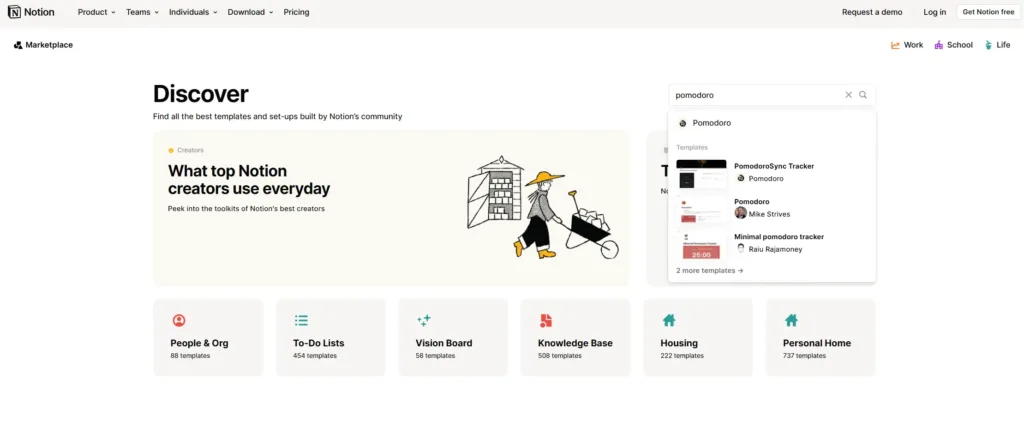
- Step 3: Find a Template in the library that you like
- Step 4: Click “Get Template”
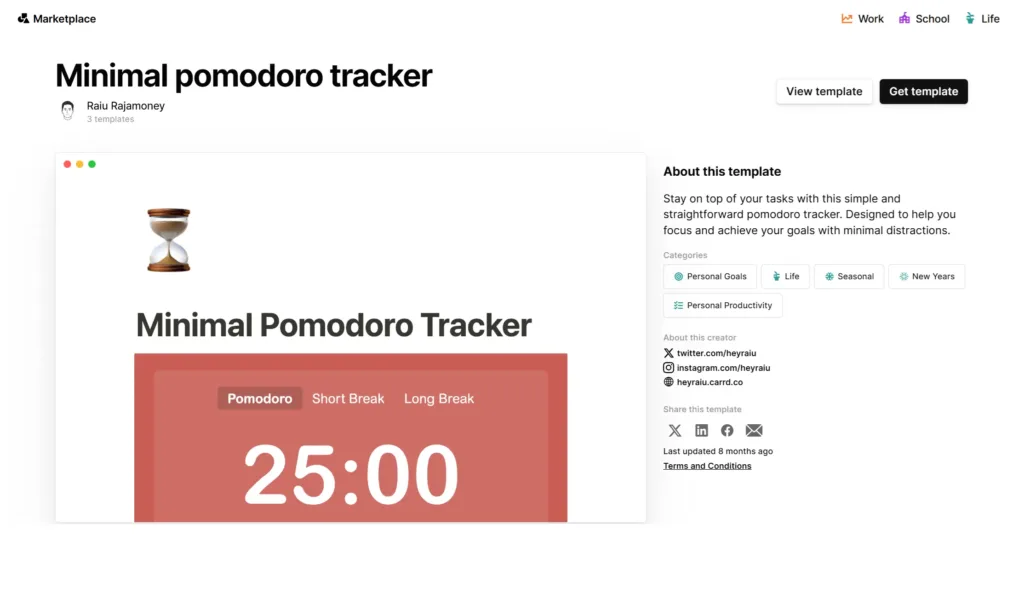
- Step 5: Select in what workspace you would like to add the template
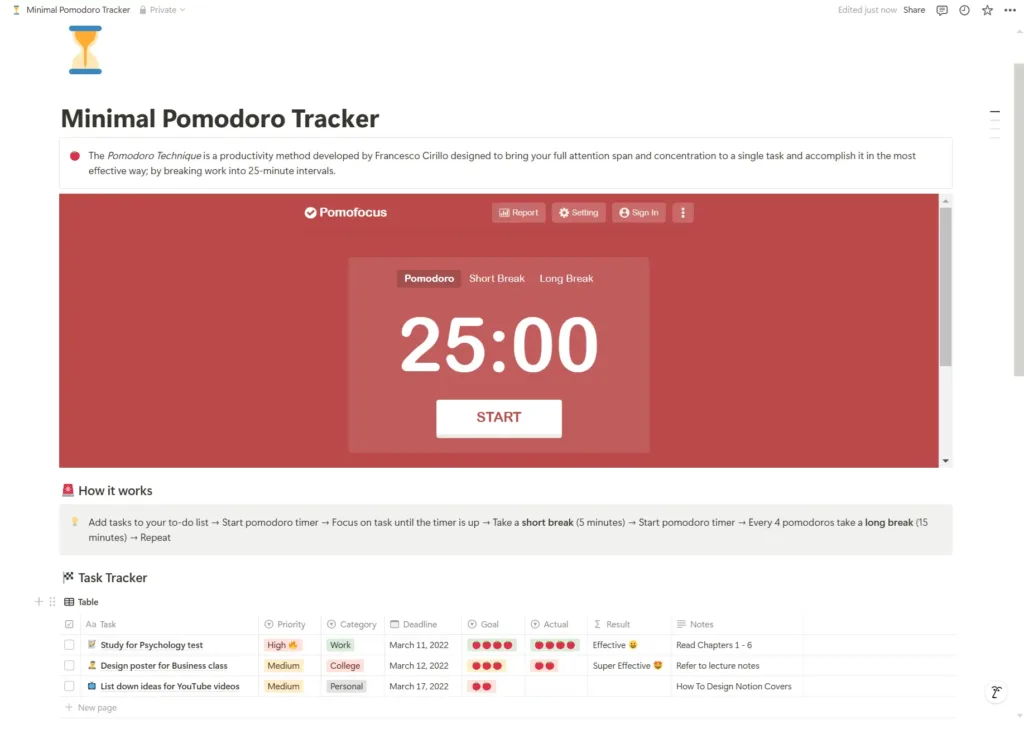
- Step 6: Move to wanted structure/page.
- Step 7: Start focusing!
Best Pomodoro Timer Tools Compatible with Notion
- Pomodoro Notion Template – PomodoroSyncTracker:
- User-friendly interface.
- Customizable session lengths.
- Calendar integration
- Free to use
- PomodoroSync Tracker:
- Offers multiple timer styles.
- Easy to embed with shareable links.
- Free to use
- Minimal Pomodoro Tracker:
- Easy UI
- Detailed statistics and reporting.
- Tracking
- Integration capabilities with Notion.
- Free to use
Tips for Maximizing Productivity with Pomodoro and Notion
- Set Clear Goals: Define what you aim to accomplish in each Pomodoro session. Use the task list.
- Use Notion Templates: Leverage existing templates to streamline your workflow and skip the distractions from your phone.
- Track Your Progress: Utilize Notion databases to monitor completed Pomodoros.
- Customize Alerts: Set up notifications to signal the start and end of sessions.
Conclusion
Integrating a Pomodoro timer into your Notion workspace is a powerful strategy to elevate your productivity in 2024. It is one of many useful templates in Notion Marketplace. By following this guide, you’re well on your way to mastering time management and achieving your goals more efficiently. So why wait? Embed your Pomodoro Notion timer today and start transforming the way you work!
Rock on!